
How to offer an Order Bump at a discounted price
If you want your order bump to be offered at a discounted price, you'll want to duplicate the product, make it a landing page, then change the price there! Here's a simple breakdown of the steps:
- Head back to your My Store tab and locate the product you'd like to offer as an Order Bump.
- Click on the three grey dots next to the product and select Duplicate Product.

- Next, locate the duplicated product and click on the three grey dots again. This time, select Make Landing Page.

- Head over to your Landing Pages tab and click on the duplicated product.

- Scroll down to the Set price section and set your desired Discounted Price!

- Click the Publish button at the bottom of the page.
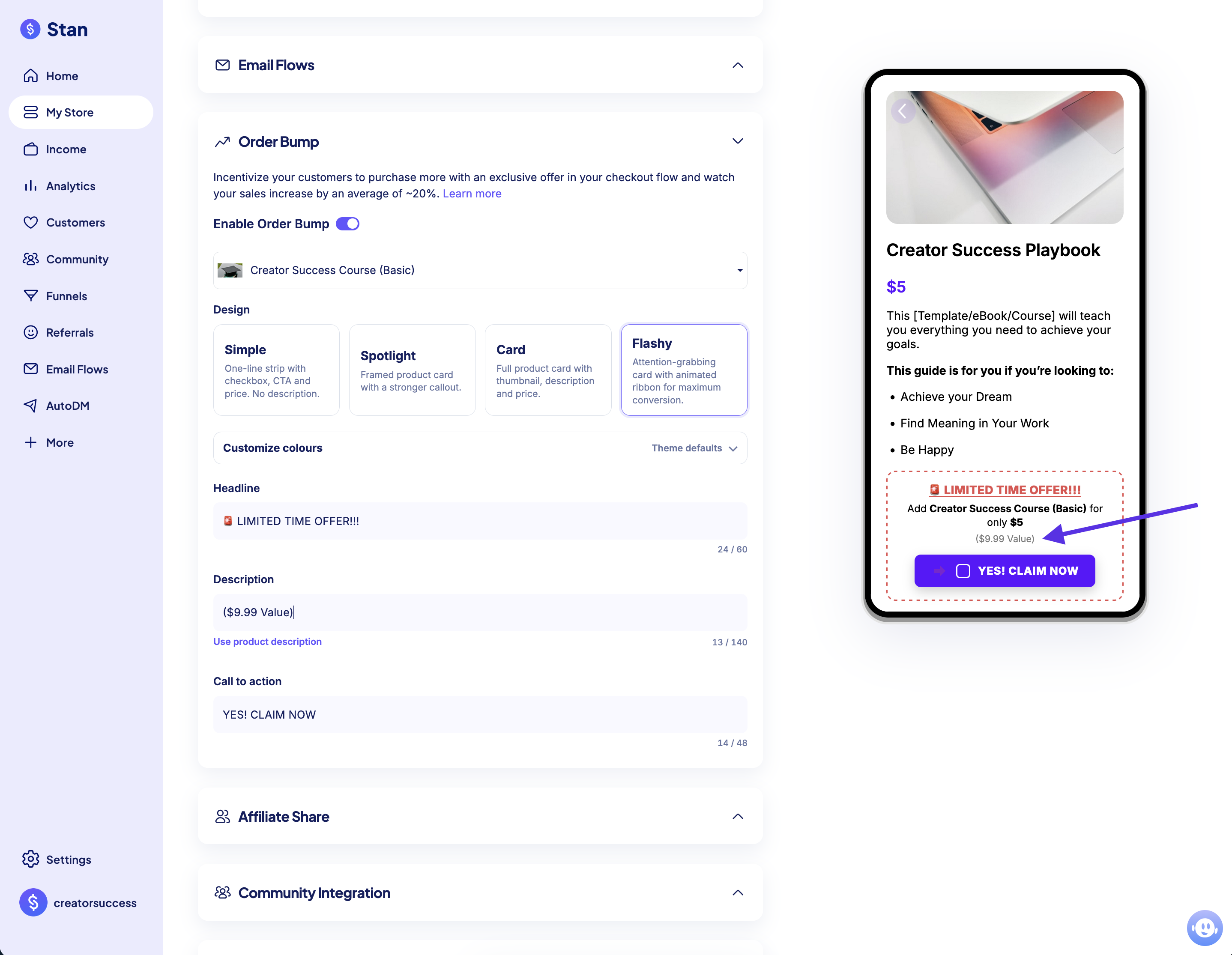
- Lastly, head back over to the product that you'd like to add this order bump to, and select the newly duplicated product from the dropdown menu! This will add the discounted order bump to your product, without having to change the price of your original product on your storefront.
📣 Heads Up!
- An Order Bump must be a Digital Download, Community, or Course product.
- Subscription products cannot be added as Order Bumps! If the Order Bump is a Community or Course, it must be set as a one-time payment.
- Order Bumps must be added to a paid product (at least $0.50). The Order Bump itself also must be a paid product. You cannot use Order Bumps with free products.
- At this time, only one order bump can be added per product. That said, multiple order bumps is a popular feature request, and it is on our roadmap!